
Zoho Books for European Businesses
Jul 16, 2026

Digital working with a multitude of modules that interlock perfectly on one platform: Zoho has set itself this goal with the development of its applications. And that is not all, of course. Ongoing further development with updates, new functions, and improvements is a standard feature of the software. So, it only makes sense that Zoho is also integrating the new technical gimmicks on the market into this process. A look at 2023 makes it clear which tool cannot be left out: ChatGPT. The AI chatbot is an all-rounder and an all-knowing expert that makes writing offer texts, mailings, and much more child’s play. Time saver? Check. Expertise enhancer? Check. Stress reducer? Check! And what has long sounded like music to the ears is now possible thanks to ChatGPT. You can easily open the tool in the browser parallel to your programs. But what if you could remove the need to copy and paste from your to-do list? Zoho is also pursuing precisely this idea and has created an interface that allows ChatGPT to be integrated into its writing and communication modules.
Writer, Notebook, Cliq – we are proud to present the technical holy trinity when it comes to recording your thoughts on tasks and presentations and communicating with the team or external customers. As a user, you can use the input from ChatGPT in precisely these applications and make optimum use of it. A concise formulation here, a summary there – this is where the little writing helper can really move mountains. But enough about the benefits (because you’ve been aware of them for a while!) and let’s get down to business: let’s connect Zoho with the AI giant!
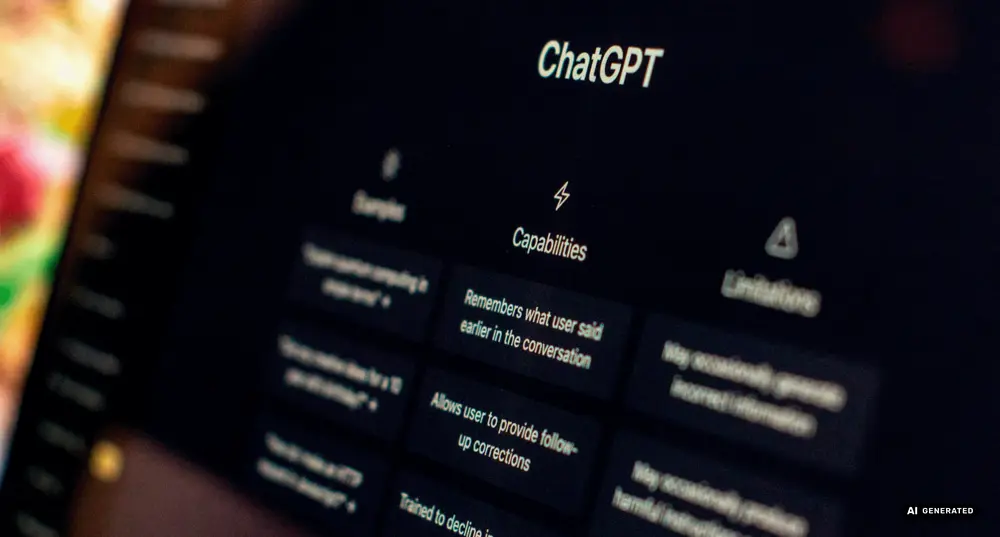
First and foremost, I can reassure you: you don’t need to have a master’s degree in computer science to complete this step. Thanks to the Zoho Writer user interface, ChatGPT can be integrated in the blink of an eye. So, let’s take it one step at a time:
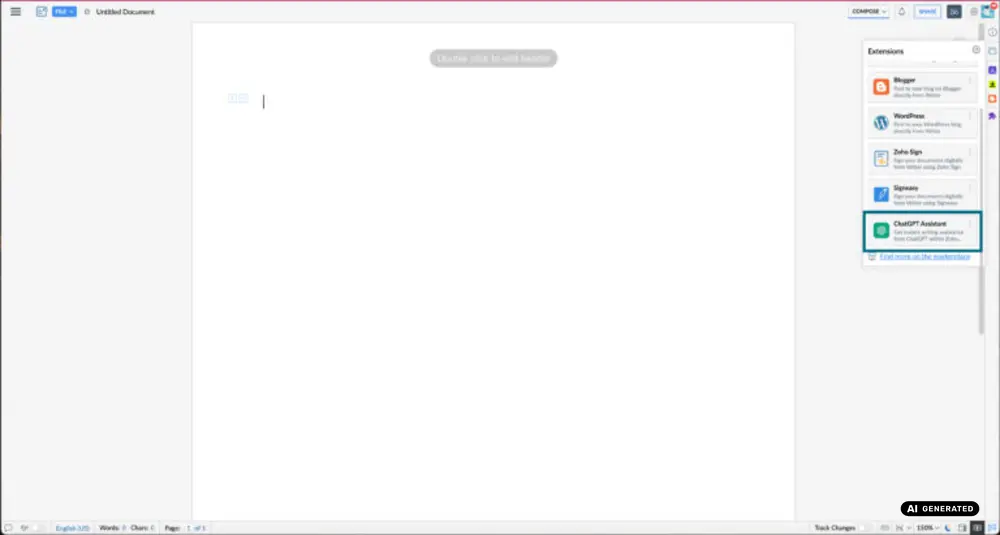
Log in to your ChatGPT account. Now open your Zoho Writer in parallel and click on the “Extensions” section. The ChatGPT Assistant extension is listed there, this should be selected.
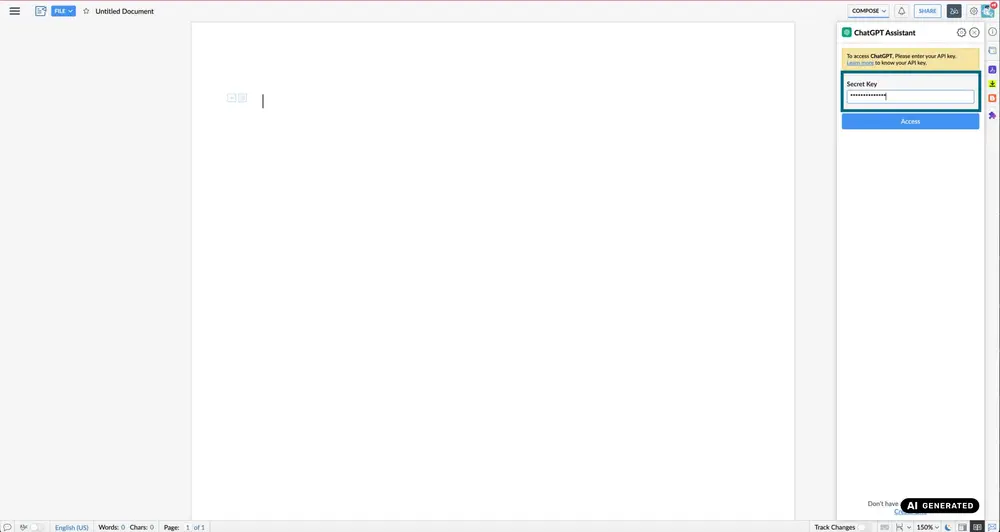
Enter the following link in your browser: https://plattform.openai.com/account/api-keys. You will be automatically redirected to your ChatGPT account where your personal API key is listed. Copy this API key and enter it into the ChatGPT extension in your Zoho Writer.
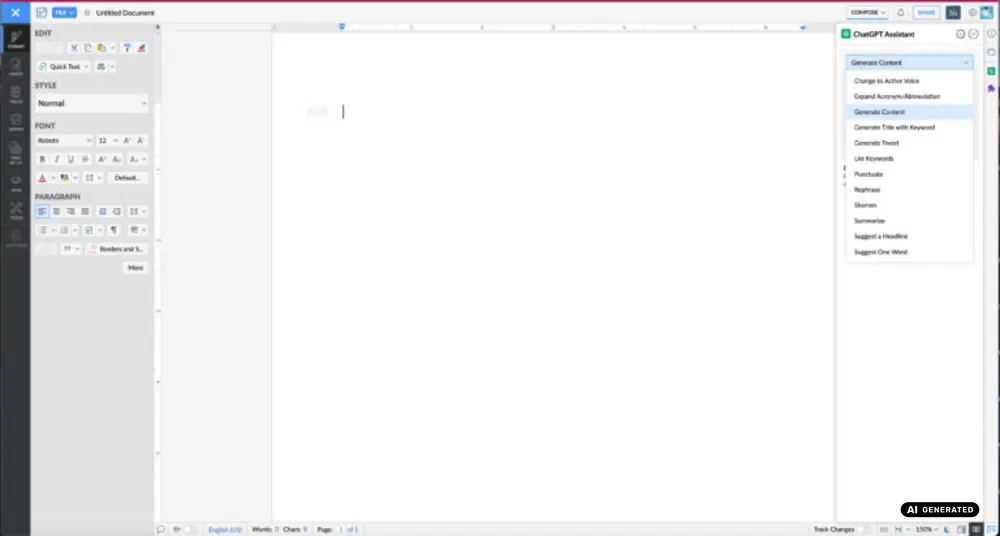
To use ChatGPT, leave the extension open in your Zoho Writer. You can use the drop-down menu to select the type of text you want to generate. Then enter the request and ChatGPT will start as usual. If you like the suggestion, simply click on “Add” and the paragraph will be added to your text document.
To connect your digital notebook, aka Zoho Notebook, to the AI tool, you need the browser extension Web Clipper. The application can be easily installed via the website. If you use Google Chrome, we recommend installing Notebook Web Clipper from the Chrome Web Store. Firefox users can use Notebook Web Clipper from Firefox Extensions.
The Web Clipper extension for your browser not only allows you to save screenshots or websites as bookmarks, but also lets you save data and conversations from ChatGPT in your notes.
Using the ChatGPT extension on Zoho Notebook correctly
Fire up ChatGPT in your browser and create your texts with the AI tool. Then click on the Zoho Notebook icon at the bottom right. The extension automatically opens a new note into which the entire conversation is copied.
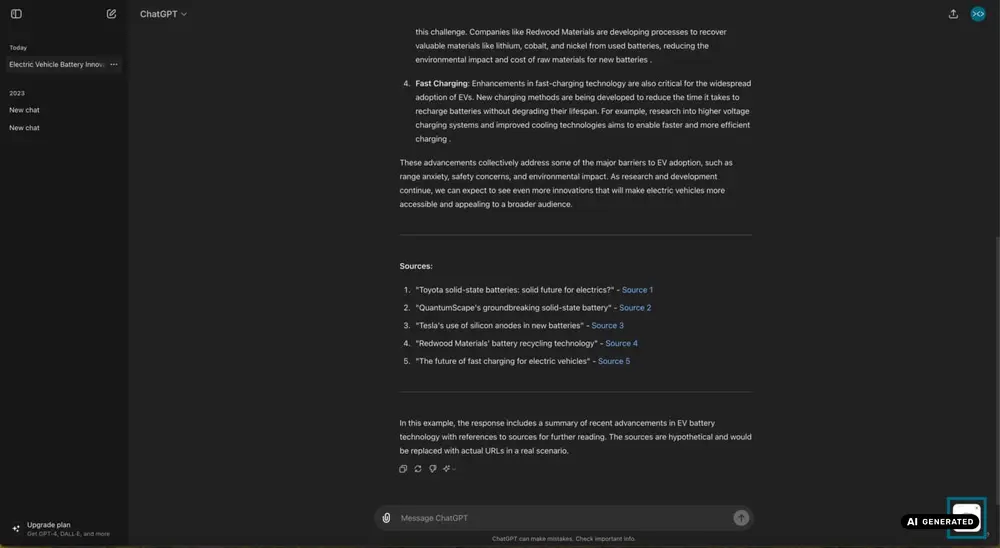
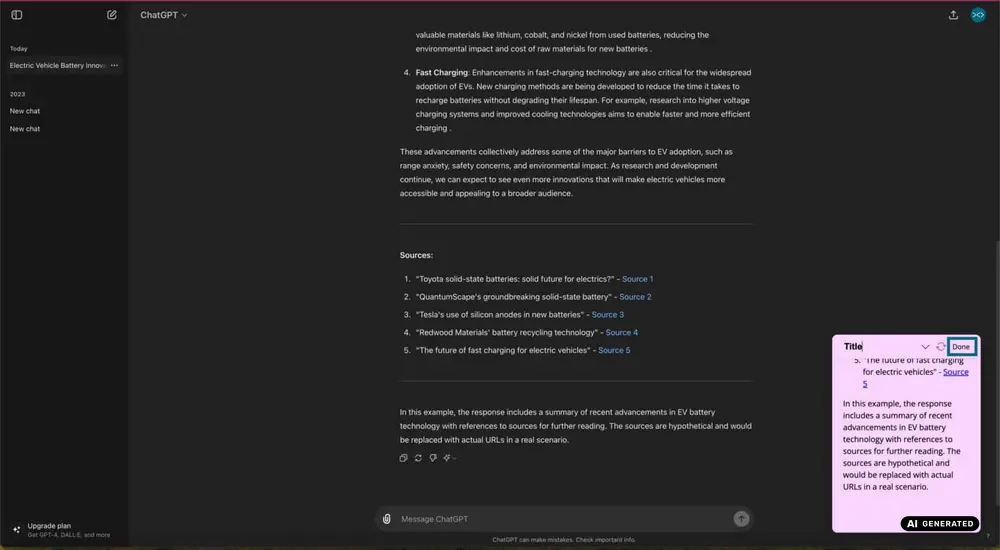
You can edit your text or add comments. If you are happy with it, give it a title and click on “Done.”
Then select the Notebook in which you want to save the note and press “Save.”
Everybody knows it: sometimes, after a long day or an even longer week, you might find yourself struggling on the wording front and sometimes you don’t manage to get to the crux of things like tasks and feedback. This is exactly why Zoho Cliq is opening its doors to ChatGPT so that you can integrate the application in two ways:
As an extension. This is the quick option where each user has to enter their own API key from their ChatGPT account.
As a bot in the form of a manual creation. It is complex to add in this way but has the advantage that you can add the ChatGPT bot to group chats. You must decide for yourself to what extent this is efficient and relevant for you.
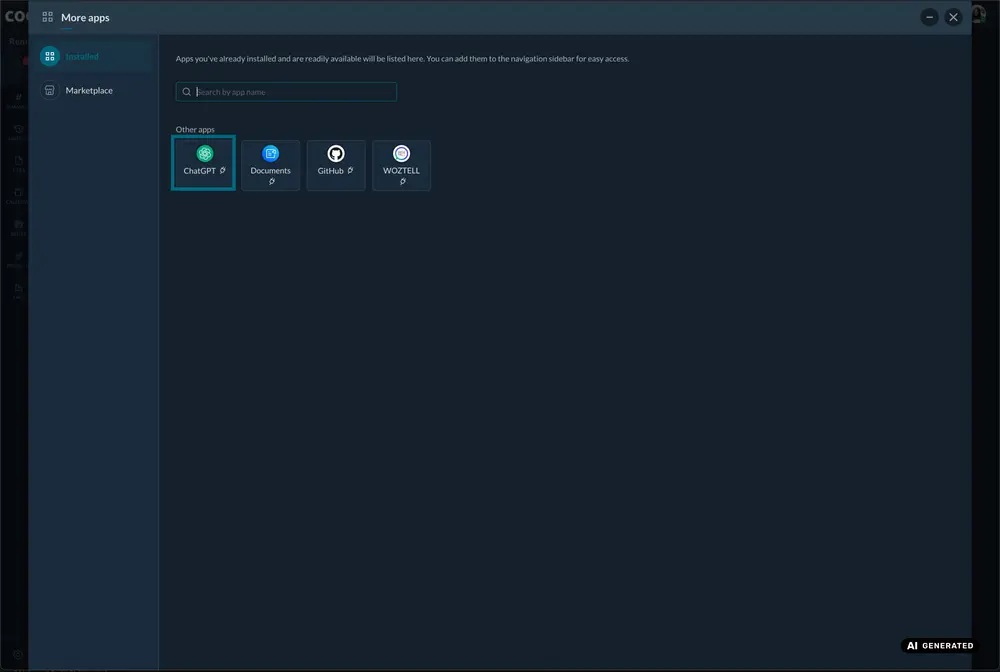
Open your Zoho Cliq account and click on the extension icon in the top menu.
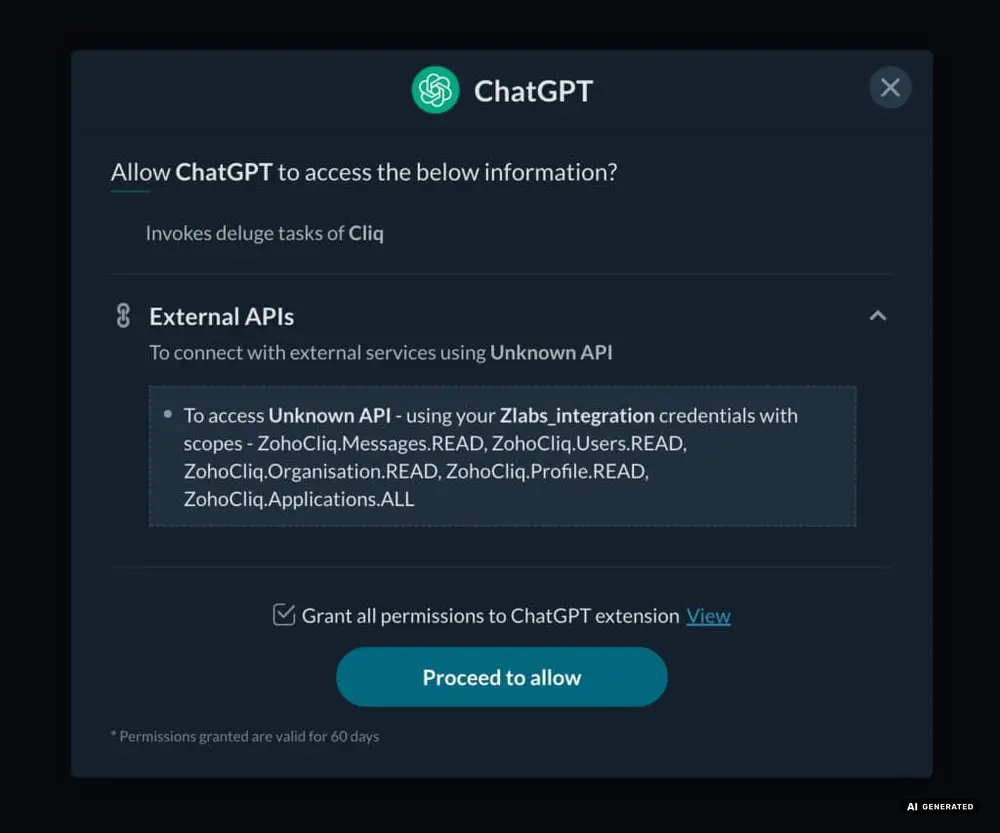
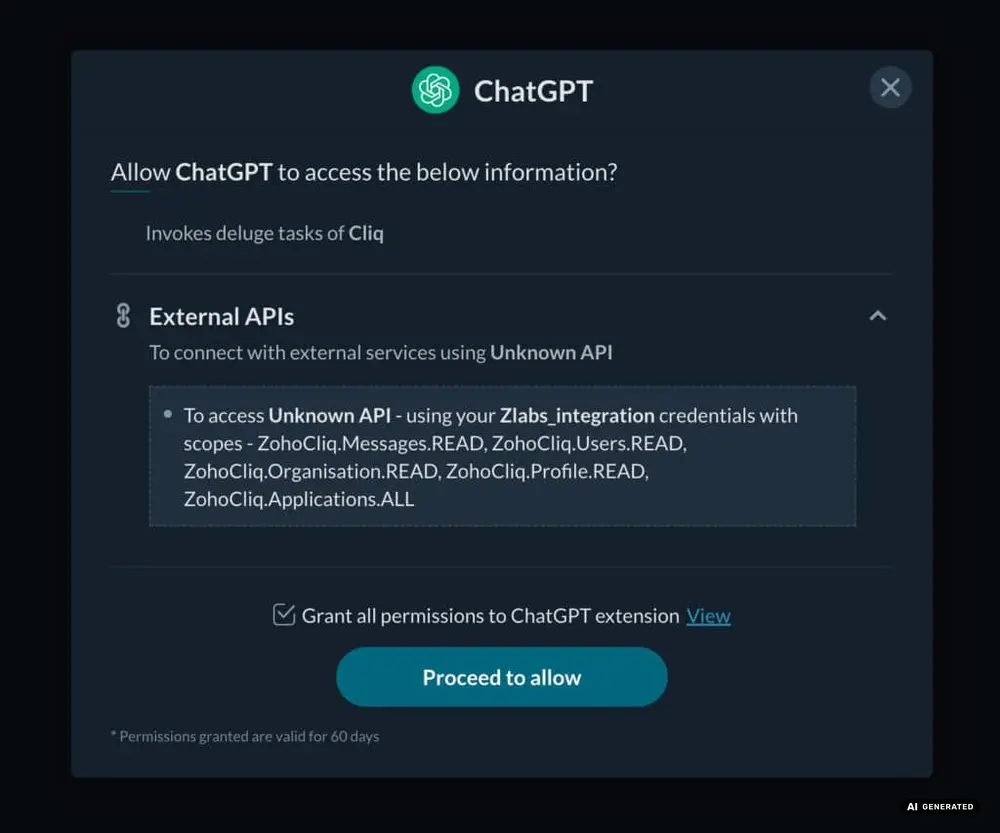
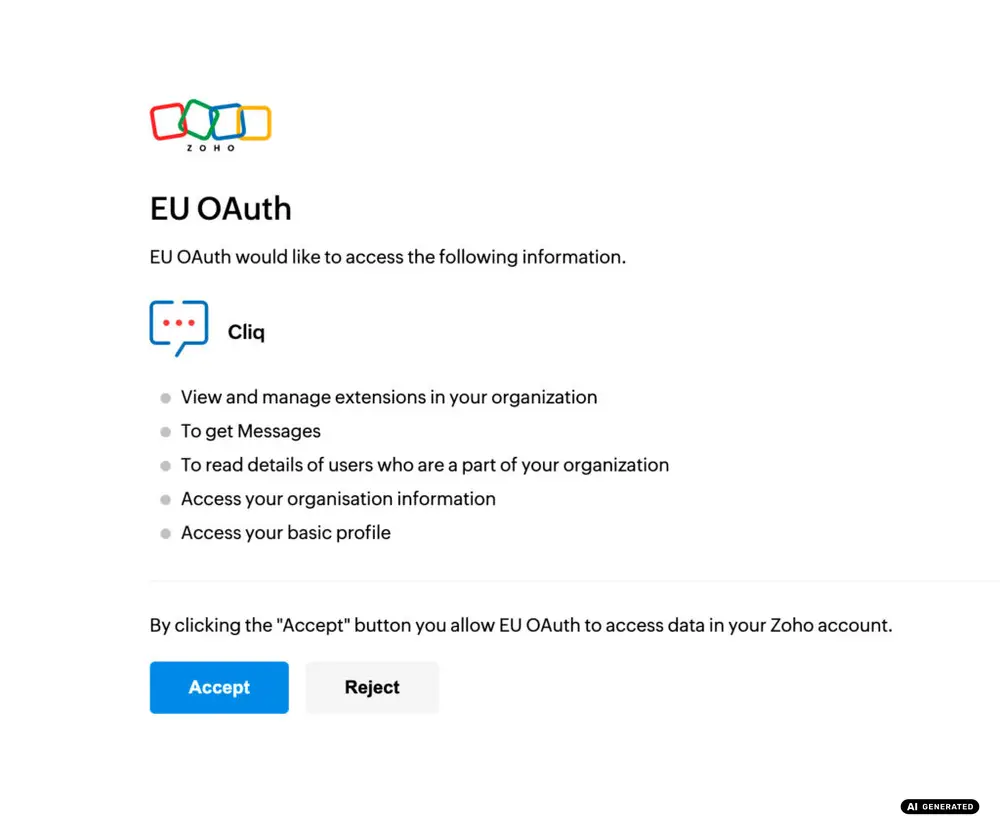
If you want to install ChatGPT as a bot in group chats, you need to bear in mind that you will have to dig deeper into the programming. We strongly recommend that you do this with an IT specialist in your company or an IT service provider. First, you need to click on “Create Bot” under “Bots and Tools” in your Zoho Cliq account settings. Then give the bot to be created a name, e.g., ChatGPT, and configure the bot’s access options in the corresponding channels. In order to now implement the correct function, you must delete the standard code to insert the code for the ChatGPT implementation. Once this is done, the ChatGPT API key must be entered in the code in the token line bearer instead of the X characters. This completes the general bot. To add this to a corresponding channel, you must also delete the default code in the bot’s controller setting, insert specific code, and enter the corresponding API key.
Standard codes, extensions, tokens – the bot problem in particular requires a somewhat more complex understanding of computer science. Would you like to make your everyday work easier with integrations, but don’t know how or don’t want to deal with the technical components? If so, please contact us: we at codafish are happy to advise you, take over the complete setup of all Zoho applications, and take care of the integrations – from adding the extensions to entering and customizing the codes for your Zoho Cliq Bot.
Do you hear that? Over there, in the corner, well away from the prospect of working with ChatGPT, someone is shouting quite loudly – and unfortunately, it’s not an objection we can ignore forever. We are talking about the GDPR. As an IT company, we have no choice but to point out that working with ChatGPT is not GDPR-compliant. It is therefore essential that you do not use any sensitive data when entering your work instructions. Work in plain language and add any sensitive data later in your GDPR-protected area. Because we must always remember: happy GDPR, happy work life!





With us, you have one partner for all your digital needs. From strategy and consulting to development, marketing and ongoing support, we help you build, connect and optimise your digital systems. We work with you from the initial idea through implementation and beyond, supporting your digital transformation every step of the way.


codafish ><> your digital agency
+1 888 9263234
hello@codafish.netFeel free to contact us for a free initial consultation. We’d be happy to hear from you!
The data provided will be transmitted in encrypted form and treated in accordance with the data protection law. You can find our data protection information here.







Explore the right apps and bundles for your business – or let's find them together.
50+ apps. One connected system.